Weather / Clear-Sky
Judge acquisition viability with cloud-cover and clear-sky charts over your AOI.
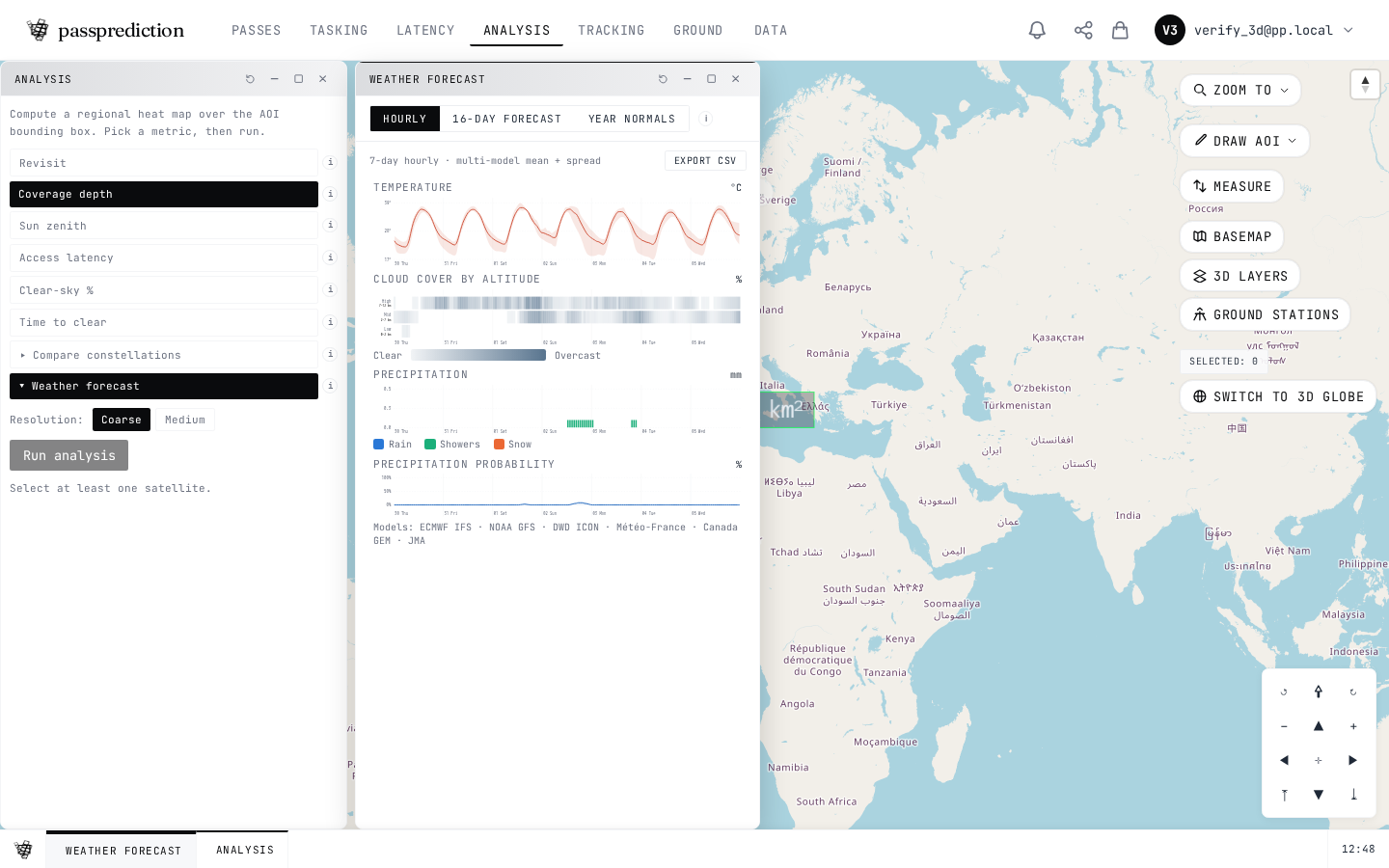
Step by step
- 1Set an AOI, then open the Weather tool.
- 2Pick a tab: Hourly, 16-day forecast, or seasonal Normals.
- 3Read cloud-by-altitude, precipitation, and clear-sky charts for the pass window.
- 4Hover the charts to inspect values at a specific time.
- 5Use best/worst-day cues to pick a viable acquisition window, then export CSV if needed.
Frequently asked questions
How do I check cloud cover and clear-sky feasibility for a pass?
Open the Weather / Clear-Sky tool with an AOI active. It shows a multi-model cloud-cover forecast over your area — an hourly chart, a 16-day forecast (cloud by altitude, precipitation, temperature band, visibility, humidity, wind), and long-term Normals. Use the mean and spread across models plus the clear-probability curve to judge whether a pass time is likely to be usable.
What is the difference between the Hourly, 16-day, and Normals weather tabs?
Hourly gives the near-term detailed forecast with a cloud-by-altitude heatmap, stacked precipitation, and a temperature band. 16-day (Forecast) extends the same multi-panel view out to two weeks at daily resolution. Normals shows the long-term climatology — smoothed mean cloud and clear-probability by day of year — with a best/worst-day caption to spot the historically clearest windows.
Why can't I open the weather forecast?
The Weather / Clear-Sky tool needs an active AOI — draw or select one first, then reopen it. If it shows an entitlement message, weather may require a registered account or a Pro/Business plan. If a forecast fails to load, use the retry action; transient model-source errors resolve on retry.
Related help
Try it now on the interactive map, learn the underlying concepts in the glossary, or see all help topics.